

 العربية
 کوردی
کوردیTo run a Node.js application on cPanel hosting, follow the steps below:
Step One: Upload the Application Files
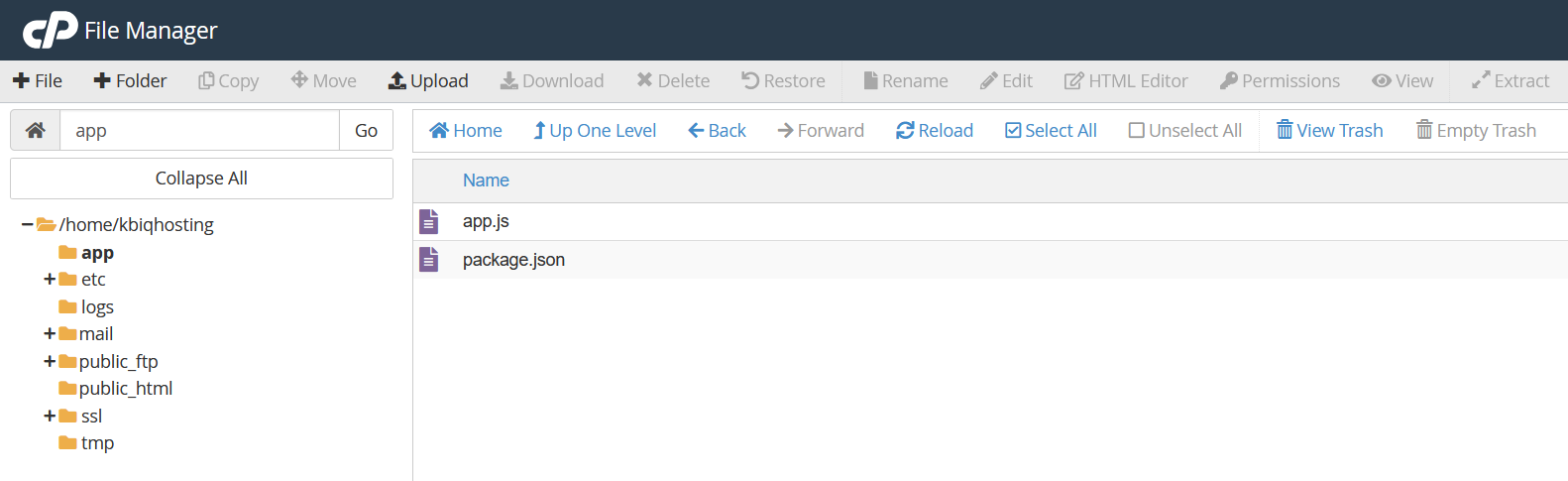
- Log in to your cPanel account, then open File Manager.
- Go to the main directory of your hosting account, outside the
public_htmldirectory, then create a folder with a suitable name for your application, such asapp. - Open the folder and upload all application files and directories, including the
package.jsonfile and the main startup file.
Note: If you upload the application as a compressed archive, extract it inside the application folder and make sure the application files are located directly inside it, rather than inside an additional nested folder.
Step Two: Create the Node.js Application
- Return to the main cPanel page, then go to the Software section and click Setup Node.js App.
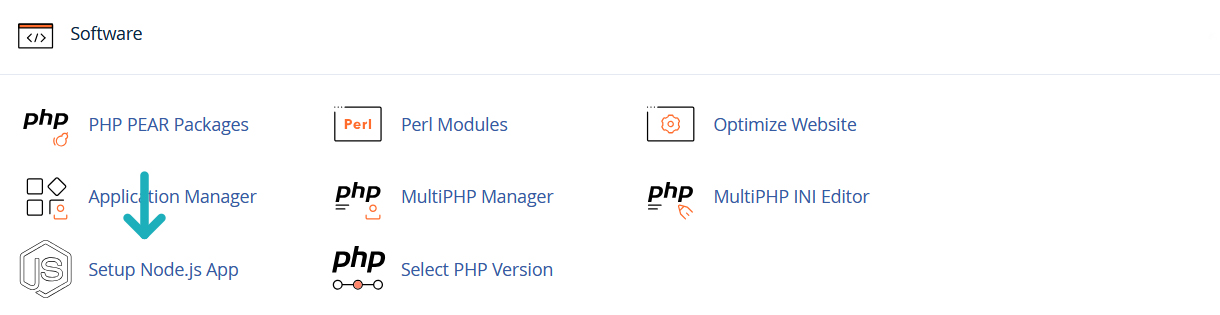
- Click Create Application.
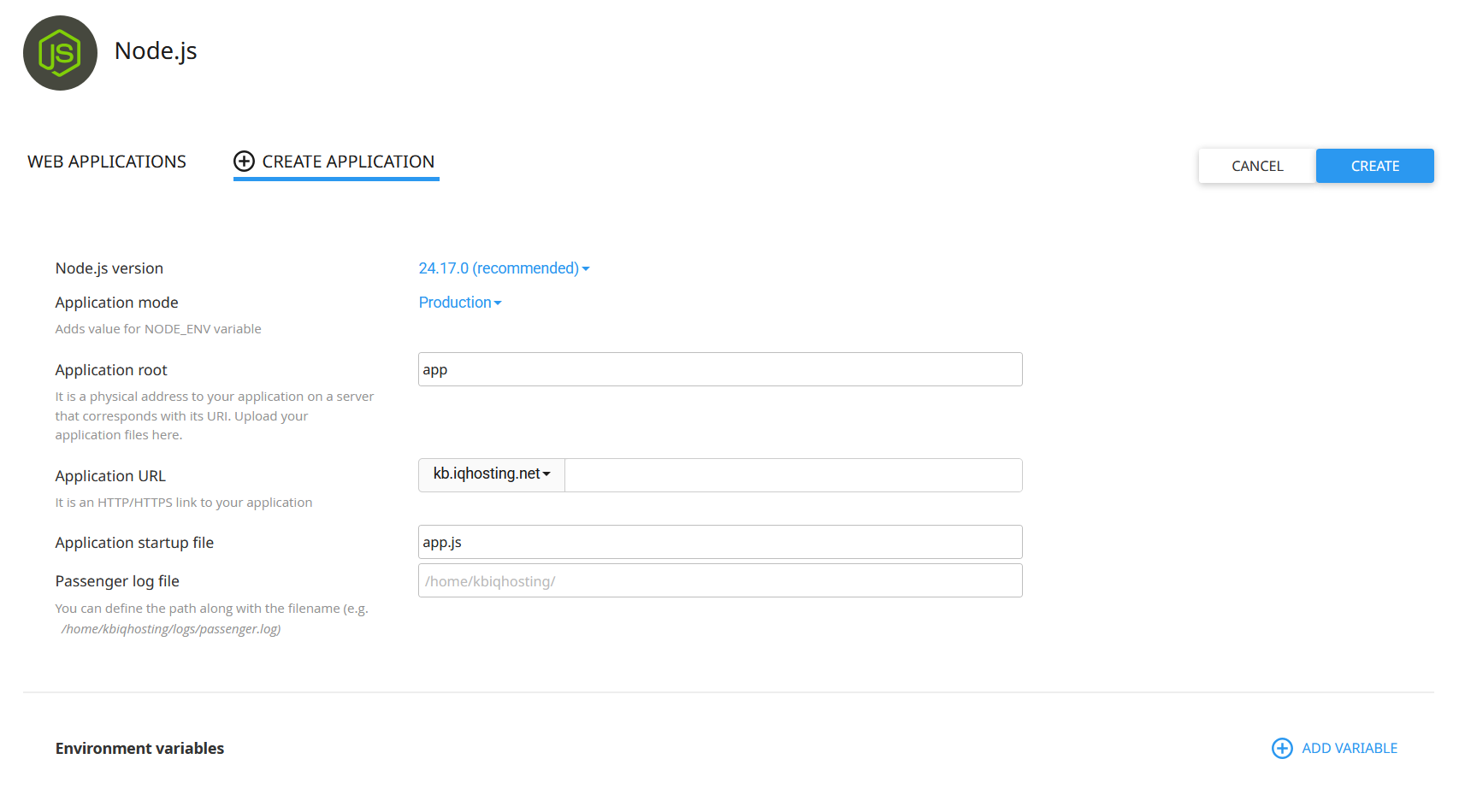
- Configure the application settings as follows:
- Node.js version: Select the Node.js version compatible with your application.
- Application mode: Select
Production. - Application root: Enter the name of the folder where you uploaded the application, such as
app. If the folder is located inside subdirectories, enter its full relative path, such asapps/myapp. - Application URL: Select the domain where you want to run the application.
- Application startup file: Enter the name of the startup file used by your application, such as
app.js,server.js, or any other filename. - Passenger log file: You can leave this field empty.
- Environment variables: Add any environment variables required by your application.
Application URL: Leave the path field next to the domain empty to run the application directly on the selected domain, or enter a path such as
app to run it under /app.- After completing the settings, click Create.
Step Three: Install the Application Packages
- After creating the application, click Run NPM Install to install the packages listed in the
package.jsonfile. - Wait until the NPM Install completed successfully message appears.
Step Four: Start the Application
- After the package installation is complete, click Restart.
- If the application status is
stopped, click Start to run it.
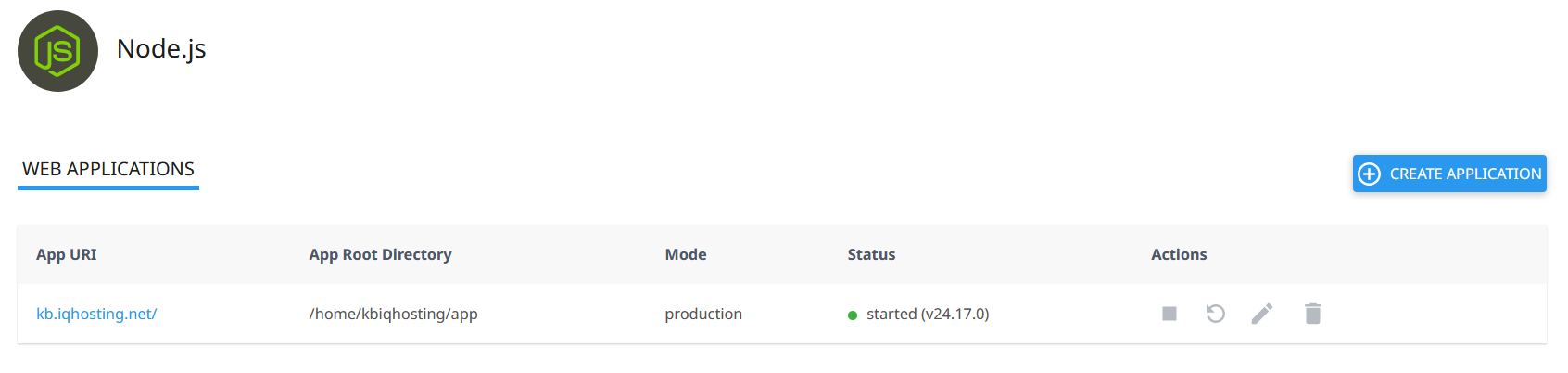
When the application status changes to started, the application is running on the selected URL. You can open it using the link displayed under App URI.
Important Information
Application Management:
- After modifying application files or environment variables, click Restart to apply the changes.
- When adding new packages or modifying dependencies in the package.json file, run Run NPM Install again, then restart the application.
- There is no need to upload the node_modules directory, as the packages are installed through Run NPM Install.
- The application does not require an open Terminal session or PM2, as it is managed through Setup Node.js App.
If the Application Does Not Work:
- Make sure the Application root value matches the path of the application folder.
- Make sure the correct startup filename is entered in Application startup file.
- Confirm that the package.json file exists in the application folder and that Run NPM Install completed without errors.
- Make sure the selected Node.js version is compatible with the application.
- Review the Passenger log file, if configured, to identify the cause of the error.