

 العربية
 کوردی
کوردیTo run a Python application on cPanel hosting, follow the steps below:
Step One: Create a Python Application
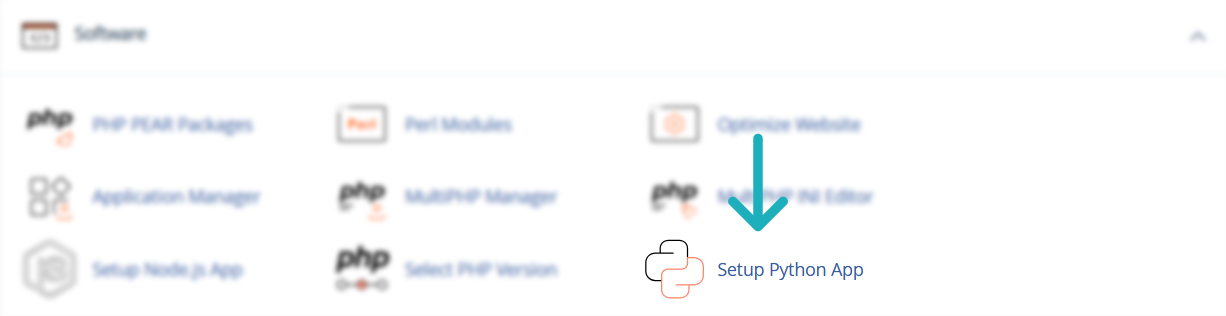
- Log in to your cPanel account, then go to the Software section and click Setup Python App.
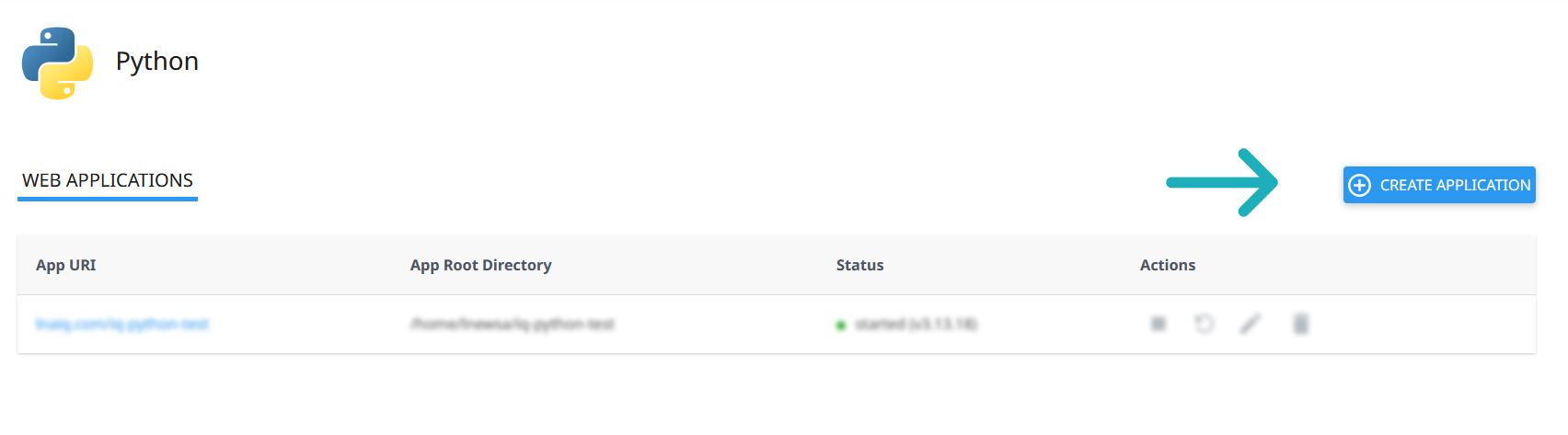
- Click Create Application.
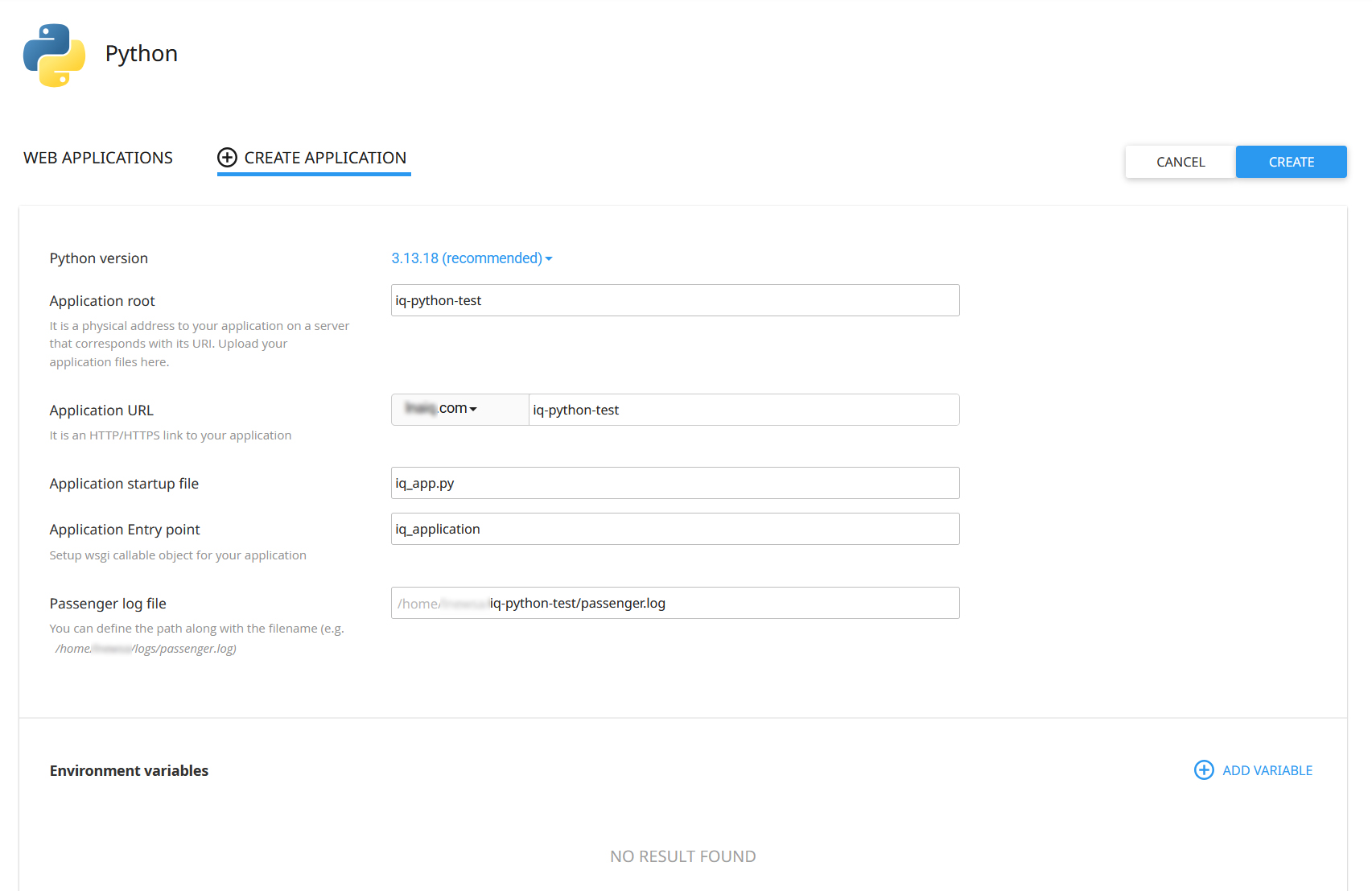
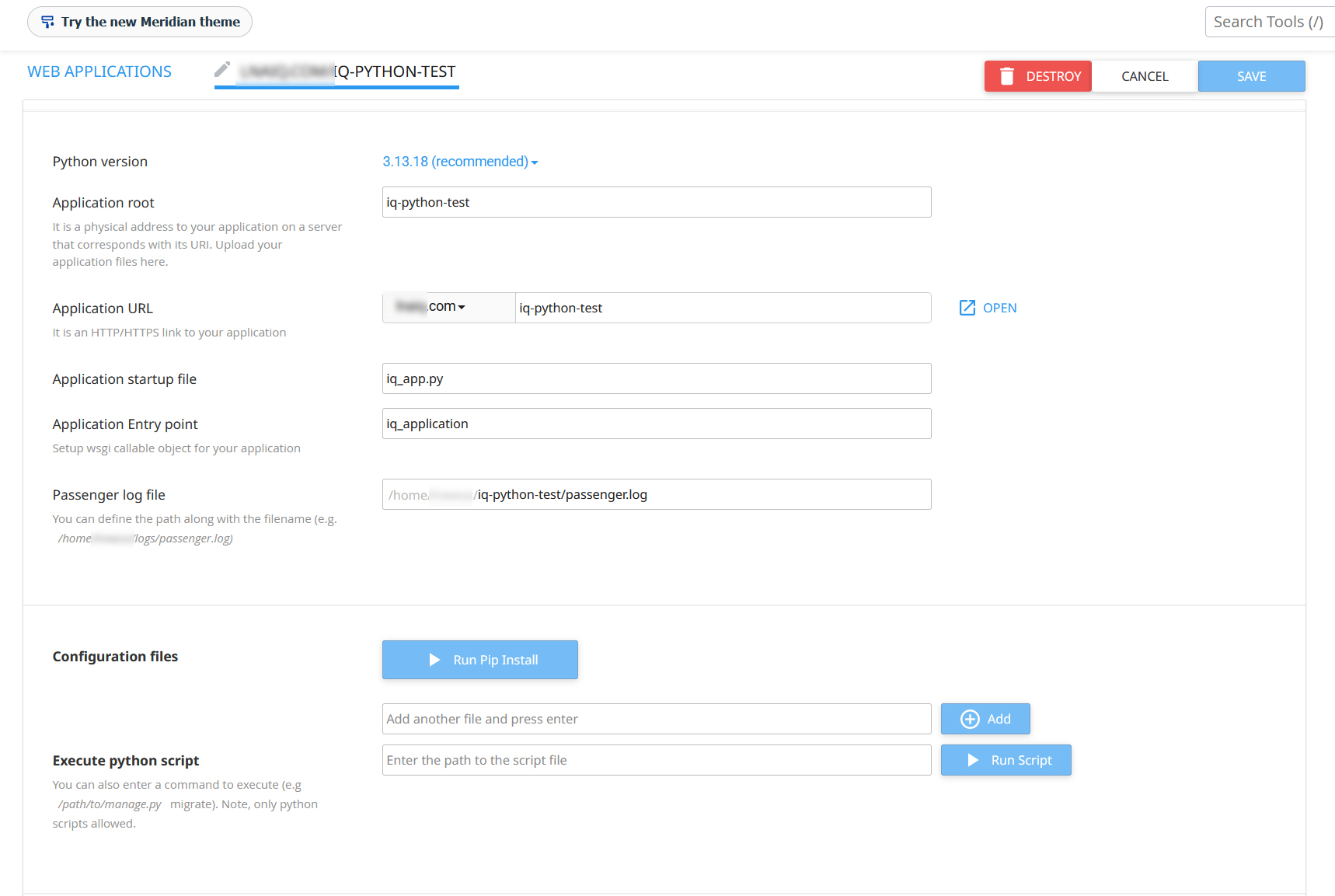
- Configure the application settings as follows:
- Python version: Select the Python version compatible with your application.
- Application root: Enter the name of the directory where you want to run your application, or its relative path if it is located within subdirectories, such as
apps/myapp. The system will automatically create the directory in your hosting account's home directory. - Application URL: Select the domain where you want to run your application.
- Application startup file: Enter the name of your application's main startup file, including the
.pyextension. - Application Entry point: Enter the name of the WSGI function or callable responsible for running your application, as defined in the startup file.
- Passenger log file: Specify the path to the error log file inside your application directory. The hosting account's home directory path is automatically displayed, so you only need to enter the application directory path and log filename, such as
iq-python-test/passenger.log, replacing the directory name with your application's path. - Environment variables: Add any environment variables required by your application, if applicable.
Note: Leave the path field next to the domain empty to run the application directly on the selected domain, or enter a path to run it under a subdirectory URL.
- After completing the settings, click Create.
Step Two: Upload the Application Files
- Return to your cPanel account and open File Manager.
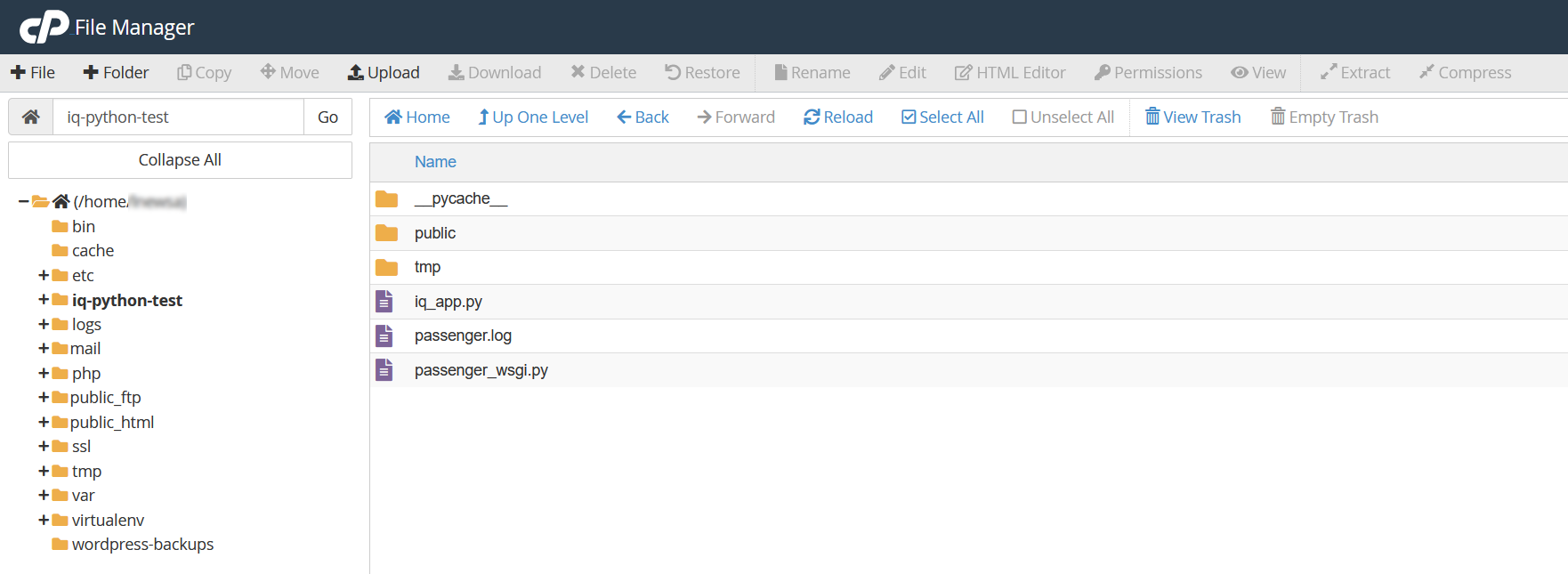
- Navigate to the application directory automatically created by the system, according to the path specified in Application root. This directory is located in your hosting account's home directory, outside
public_html. - Upload all your application files and directories, including the main startup file and the
requirements.txtfile if your application uses one.
Note: If you upload your application as a compressed archive, extract it inside the application directory. Make sure the application files are located directly inside it rather than within an additional nested directory. The startup filename and entry point must also match the values specified when creating the application.
The system automatically creates the passenger_wsgi.py file to connect the startup file to the specified entry point. In most cases, you do not need to modify this file unless your application requires a custom configuration.
Step Three: Install the Application Dependencies
- Return to Setup Python App, then open the application settings using the edit icon.
- If your application uses external Python packages, make sure the
requirements.txtfile is present in the application directory. - Under Configuration files, enter the filename
requirements.txt, then click Add to add it to the configuration file list. - Click Run Pip Install to install the required packages, and wait for the installation to complete without errors.
Note: If your application does not require any external packages, you can skip this step.
Step Four: Start the Application
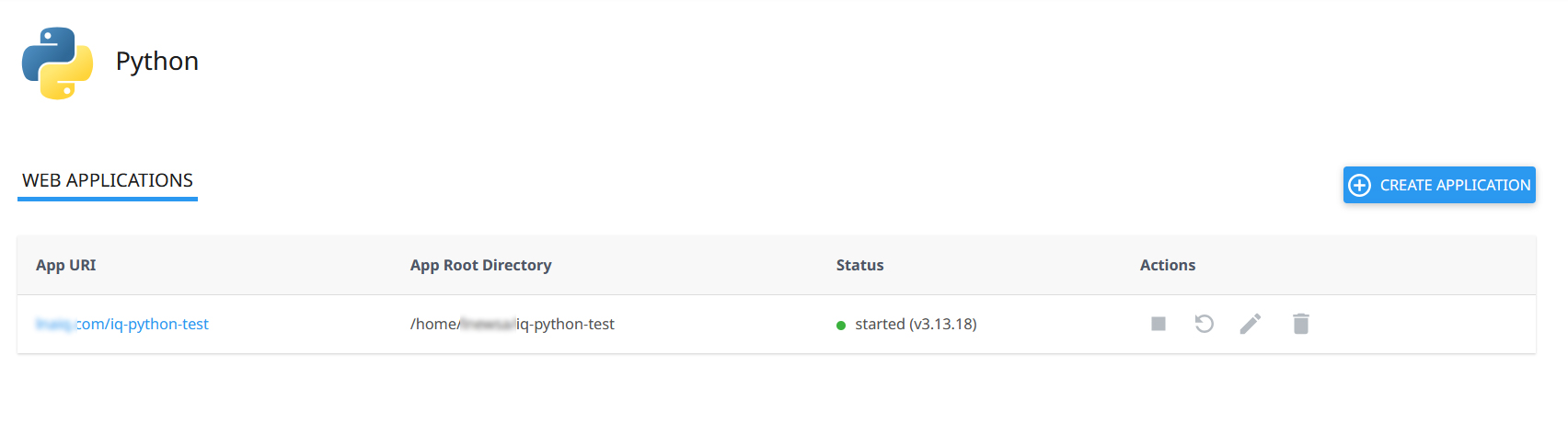
- After uploading the application files and installing the required packages, click Restart to apply the changes and restart the application.
- If the application status is
stopped, click Start to run it.
When the application status shows started, open the application using the link displayed under App URI to verify that it is working correctly.
Important Information
Application Management:
- After modifying application files or environment variables, click Restart to apply the changes.
- When adding new packages or modifying
requirements.txt, run Run Pip Install again, then restart the application. - You can manage and restart your application through Setup Python App in cPanel.
- This method supports Python applications compatible with WSGI and Passenger. Applications that use different execution methods may require additional configuration or a different hosting environment.
If the Application Does Not Work:
- Make sure the Application root value matches the application directory path.
- Verify that the startup file exists inside the application directory and that its filename matches the value specified in Application startup file.
- Check that the Application Entry point is correct and matches the entry point defined in your application.
- Make sure the selected Python version is compatible with your application and its dependencies.
- Verify that all required packages have been installed successfully and that any environment variables are configured correctly.
- Review the
passenger.logfile inside the application directory to identify the cause of any errors.