

 العربية
 کوردی
کوردیYou can change your cPanel account password through the control panel by following these steps:
Step One: Access Security Settings
- Log into your cPanel control panel
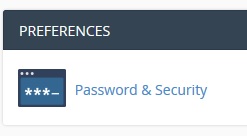
- Select the "Password & Security" icon
Step Two: Fill Password Change Form
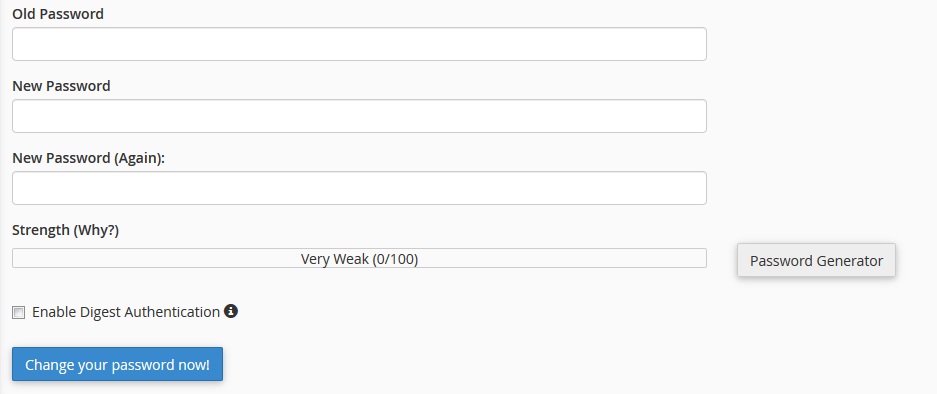
A page will appear containing three fields:
- Enter your old password in the first field "Old Password"
- Choose one of the following two methods for the new password:
- Method One: Use the "Password Generator" to create a strong password automatically
- Method Two: Enter your own password in both "New Password" and "Confirm New Password" fields
Step Three: Apply Changes
- After filling all fields, click "Change Password" to confirm the change
Tip: We recommend using the built-in password generator in cPanel to create a strong and secure password containing a mix of uppercase and lowercase letters, numbers, and symbols.
Secure Password Requirements
Make sure your new password contains:
- Adequate Length: At least 8 characters (preferably 12 or more)
- Mixed Case Letters: Combination of A-Z and a-z
- Numbers: From 0-9
- Special Characters: Such as !@#$%^&*
- Avoid Personal Information: Don't use your name or birth date
Important Warning: Save your new password in a secure location. Changing the password will affect all services linked to your account such as FTP and email.
Note: After changing the password, you may need to update the settings in FTP programs and email clients to match the new password.